

Introduction Blocking someone on WhatsApp is one of the simplest ways to stop unwanted messages, avoid spam, or create healthy boundaries. But once you block someone, a common question arises: “Can I see...



SpyZee: Best Parental Control Apps to Use For Family
Parenting in the digital age is more challenging than ever. Children today grow up surrounded by smartphones, social media, online games, and endless content — some helpful, some harmful. Parents want to protect their kids from inappropriate content, online predators, cyberbullying, and screen‑time addiction, while still respecting their privacy and independence.
This is where parental control apps come in. These tools help families:
- Monitor device activity
- Filter harmful content
- Manage screen time
- Track location
- Encourage healthy digital habits
This guide explores the top parental control apps, including a detailed comparison table featuring SpyZee, one of the most complete Android‑focused parental‑control solutions.
What Makes the Best Parental Control App?
Before choosing an app, it’s important to understand the features that matter most to families.
1. Comprehensive Features
A strong parental‑control app should include:
Web & Content Filtering
Blocks inappropriate websites and harmful content.
Time Management
Allows parents to set:
- Daily screen‑time limits
- App‑specific limits
- Bedtime or study schedules
App Management
Lets parents:
- View installed apps
- Block specific apps
- Approve or deny new downloads
Location Tracking
Includes:
- Real‑time GPS
- Geofencing
- Location history
Activity Monitoring
Shows:
- App usage
- Screen time
- Browsing activity
- Alerts for risky behavior
2. Privacy & Security
A good app should:
- Protect user data
- Use encrypted connections
- Offer transparent privacy policies
3. Ease of Use
Parents need:
- A simple dashboard
- Clear reports
- Easy setup
Children need:
- Respectful boundaries
- Clear communication
4. Cross‑Platform Compatibility
The best apps support:
- Android
- iOS
- Windows
- macOS
- ChromeOS
- Web dashboards
Best Parental Control Apps
1. SpyZee Parental Control — Best for Android Parental Control
SpyZee is designed for families who want strong monitoring tools on Android devices. It combines real‑time monitoring with location tracking, app management, and content filtering.
Compatibility
Android, iOS, Web
Main Features
- Remote Monitoring: View live screen and surroundings
- Location Tracking: Real‑time GPS + geofencing
- Content Filtering: Block harmful websites
- Screen Time Control: Set daily limits
- App Blocker: Restrict specific apps
Pricing
- 3‑day free trial
- Monthly: $9.99
- Quarterly: $19.99
- Yearly: $59.99
Reasons to Buy
- User‑friendly interface
- Strong Android monitoring
- Accurate location tracking
Reasons to Avoid
- Full functionality strongest on Android
2. Net Nanny — Best for Apple Devices
Net Nanny is known for its polished interface and strong content‑filtering tools, especially on iOS.
Compatibility
iOS, macOS, Windows
Main Features
- Porn blocker
- Activity reports
- Location tracking
- Website & app blocking
- Screen‑time limits
Pricing
$39.99–$89.99/year depending on devices
Reasons to Buy
- Excellent content filtering
- Strong iOS support
Reasons to Avoid
- No geofencing
- Limited Android support
3. Kaspersky Safe Kids — Best for Online Safety
Kaspersky Safe Kids focuses on web safety and social‑media monitoring.
Compatibility
iOS, Android, macOS, Windows, Web
Main Features
- Web filtering
- GPS locator
- Screen‑time limits
- Social‑media monitoring
- Real‑time alerts
Pricing
$20.99 first year, $22.99/year renewal
Reasons to Buy
- Affordable
- Strong web filtering
Reasons to Avoid
- Limited iOS features
- Location tracking may lag
4. Qustodio — Best for Multi‑Platform Families
Qustodio is ideal for families using multiple devices and operating systems.
Compatibility
iOS, Android, macOS, Windows, ChromeOS, Kindle
Main Features
- Web & app filtering
- Time limits
- Location tracking
- Calls & SMS tracking (Android)
- Panic button (Android)
Pricing
$54.95–$99.95/year
Reasons to Buy
- Excellent cross‑platform support
- Strong filtering tools
Reasons to Avoid
- VPN bypass issues
- Limited social‑media monitoring
5. Bark — Best for Monitoring Teens
Bark focuses on detecting risky behavior through AI‑powered content scanning.
Compatibility
iOS, Android, Windows, ChromeOS, Kindle
Main Features
- Content monitoring
- Alerts for harmful behavior
- Parenting insights
- Location sharing
- Website blocking
Pricing
$14/month
Reasons to Buy
- Great for teens
- Strong social‑media monitoring
Reasons to Avoid
- No full screen‑time limits
- Higher price
6. Screen Time — Best for Building Healthy Habits
Screen Time helps children develop better digital routines.
Compatibility
iOS, Android, Kindle
Main Features
- Time schedules
- Tasks & rewards
- Instant pause
- Web filtering
- Location tracking
Pricing
Free basic plan; premium $6.99/month
Reasons to Buy
- Encourages positive habits
- Simple interface
Reasons to Avoid
- Limited content monitoring
- Teens may bypass controls
7. Google Family Link — Best for Google Users
Google Family Link is ideal for families using Android and ChromeOS.
Compatibility
Android, iOS, ChromeOS
Main Features
- SafeSearch
- Remote locking
- App approvals
- Activity reports
- Location tracking
Pricing
Free
Reasons to Buy
- Seamless Google integration
- Completely free
Reasons to Avoid
- Limited outside Google ecosystem
8. Microsoft Family Safety — Best for Windows & Xbox Users
Microsoft Family Safety is built for families using Windows and Xbox.
Compatibility
Windows, Xbox, Android, iOS
Main Features
- Content filters
- Website blocking
- Activity reports
- Screen‑time limits
- Driving safety
Pricing
Free; more features with Microsoft 365
Reasons to Buy
- Great for Windows/Xbox households
Reasons to Avoid
- Limited iOS/Android performance
SpyZee vs. Other Parental Control Apps
| Feature / App | SpyZee | Net Nanny | Kaspersky Safe Kids | Qustodio | Bark | Screen Time | Google Family Link | Microsoft Family Safety |
|---|---|---|---|---|---|---|---|---|
| Live Monitoring | ✔️ | ❌ | ❌ | ❌ | ❌ | ❌ | ❌ | ❌ |
| Real‑Time GPS Tracking | ✔️ | ✔️ | ✔️ | ✔️ | ✔️ | ✔️ | ✔️ | ✔️ |
| Geofencing | ✔️ | ❌ | ✔️ | ✔️ | ❌ | ❌ | ❌ | ✔️ |
| Screen‑Time Limits | ✔️ | ✔️ | ✔️ | ✔️ | ❌ | ✔️ | ✔️ | ✔️ |
| App Blocking | ✔️ | ✔️ | ✔️ | ✔️ | ✔️ | ✔️ | ✔️ | ✔️ |
| Content Filtering | ✔️ | ✔️ | ✔️ | ✔️ | ✔️ | ✔️ | ✔️ | ✔️ |
| Social‑Media Monitoring | Keyword alerts | Limited | Facebook/VK | Limited | ✔️ | ❌ | ❌ | ❌ |
| Cross‑Platform Support | Android/iOS/Web | iOS/macOS/Windows | All major OS | All major OS | All major OS | iOS/Android | Android/ChromeOS | Windows/Xbox |
| Best For | Android monitoring | Apple devices | Online safety | Multi‑platform | Teens | Healthy habits | Google users | Microsoft users |
Must‑Have Features When Choosing a Parental Control App
With so many parental‑control apps available, choosing the right one can feel overwhelming. To help you make an informed decision, here are the essential features every reliable parental‑control app should include.
1. Real‑Time Location Tracking
Parents need accurate, up‑to‑date information about their child’s whereabouts. A strong parental‑control app should offer:
- Real‑time GPS updates
- Location history
- Geofencing alerts
- Reliable accuracy indoors and outdoors
Apps like SpyZee, Qustodio, and Kaspersky Safe Kids excel in this area.
2. Web & Content Filtering
Children can easily stumble upon harmful content online. Effective filtering should:
- Block inappropriate websites
- Filter search results
- Restrict adult content
- Work across browsers
Net Nanny and Kaspersky Safe Kids are known for strong filtering capabilities.
3. Screen‑Time Management
Healthy digital habits start with balance. A good app should allow parents to:
- Set daily screen‑time limits
- Create schedules (bedtime, study time)
- Restrict specific apps
- Pause device usage instantly
SpyZee, Qustodio, and Screen Time offer flexible screen‑time tools.
4. App Management
Parents should be able to:
- View installed apps
- Block inappropriate apps
- Approve or deny downloads
- Monitor app usage
This helps prevent exposure to unsafe or addictive apps.
5. Activity Monitoring
A strong parental‑control app should provide:
- App usage reports
- Browsing history
- Alerts for risky behavior
- Social‑media insights (where supported)
SpyZee and Bark offer advanced monitoring tools for digital safety.
6. Privacy & Security
A trustworthy app must:
- Protect user data
- Use encrypted connections
- Offer transparent privacy policies
- Avoid selling or sharing data
This is especially important for apps that monitor sensitive information.
7. Cross‑Platform Compatibility
Families often use multiple devices. The best apps support:
- Android
- iOS
- Windows
- macOS
- ChromeOS
- Web dashboards
Qustodio and Kaspersky Safe Kids offer the widest compatibility.
About SpyZee Parental Control App
Parenting in the digital age comes with new challenges. Children today grow up surrounded by smartphones, social media, online games, and endless content — some helpful, some harmful. As a result, parents often look for tools that help them stay informed, guide their children’s digital habits, and protect them from online risks.
SpyZee is one of the parental control apps designed to support families in this mission. It offers a wide range of monitoring, safety, and management features that help parents understand how their children use their devices and intervene when necessary.
This fully rewritten, long‑form guide explores everything SpyZee offers — from live monitoring and location tracking to screen‑time management and content filtering — in a neutral, informative, and AdSense‑friendly way.
SpyZee: A Caring Parental Control App for All
SpyZee is built around one core idea: helping parents protect their children in a balanced, responsible way. It combines real‑time monitoring tools with device‑management features to give parents a clearer picture of their child’s digital world.
Whether you’re concerned about online risks, want to encourage healthier phone habits, or simply need a way to stay connected with your child’s safety, SpyZee provides a structured set of tools to support your parenting goals.

SpyZee Safeguards Your Kids in Every Possible Way
SpyZee organizes its features into three major categories:
- Monitoring tools
- Location & safety tools
- Device & content management tools
Let’s explore each category in detail.
1. Monitoring Tools: See What’s Happening on Your Child’s Device
SpyZee includes several real‑time monitoring features that help parents stay aware of their child’s digital activity.
Live Monitoring: See, Watch, and Listen in Real Time
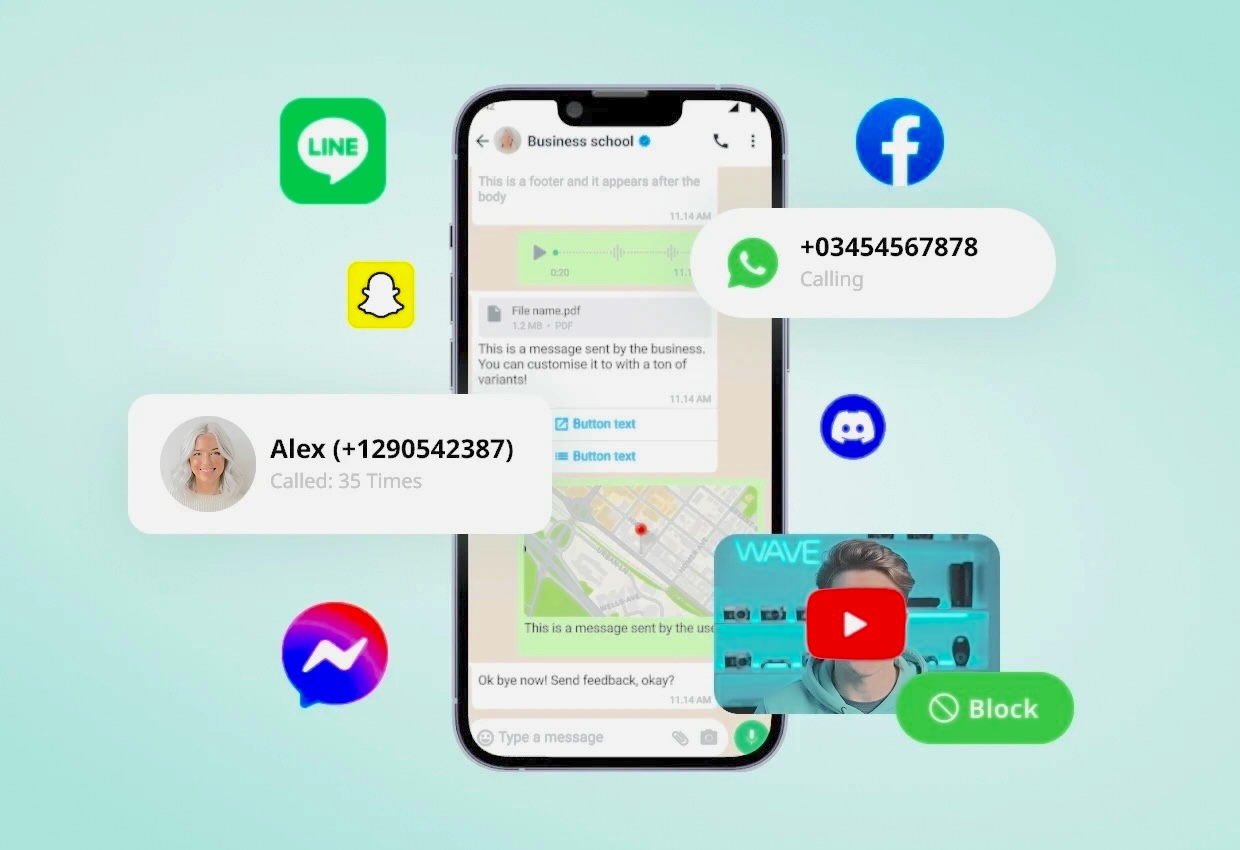
Live Monitoring is one of SpyZee’s most advanced features. It allows parents to view their child’s device activity as it happens.
With Live Monitoring, parents can:
- See the child’s screen in real time
- Watch browsing behavior
- View app usage
- Monitor video‑watching activity
- Observe downloads and interactions
This feature helps parents understand how their child uses their phone and identify potentially risky behavior early.
Remote Camera & One‑Way Audio: Understand the Child’s Surroundings
SpyZee includes tools that help parents assess their child’s environment when safety is a concern.
Remote Camera
Allows parents to activate the child’s camera remotely to view their surroundings.
One‑Way Audio
Lets parents listen to ambient sounds around the child’s device.
These features can help parents:
- Ensure their child is in a safe environment
- Detect potential risks
- Understand context during emergencies
SpyZee emphasizes safety, not surveillance — these tools are intended for responsible use.
Screen Mirroring: Capture Real‑Time Device Activity
Screen Mirroring allows parents to view the child’s screen as if they were holding the device themselves.
Parents can:
- Capture screenshots
- Monitor app activity
- See messages, videos, and browsing behavior
- Understand how the child interacts with their device
This feature is especially helpful for guiding children toward safer digital habits.
Notifications Tracker: Stay Updated on Device Alerts
SpyZee can sync notifications from the child’s device, including:
- App alerts
- Social media notifications
- Messages
- System warnings
This helps parents stay aware of:
- New contacts
- App activity
- Potential risks
- Unusual behavior
Notifications tracking works on both Android and iPhone.
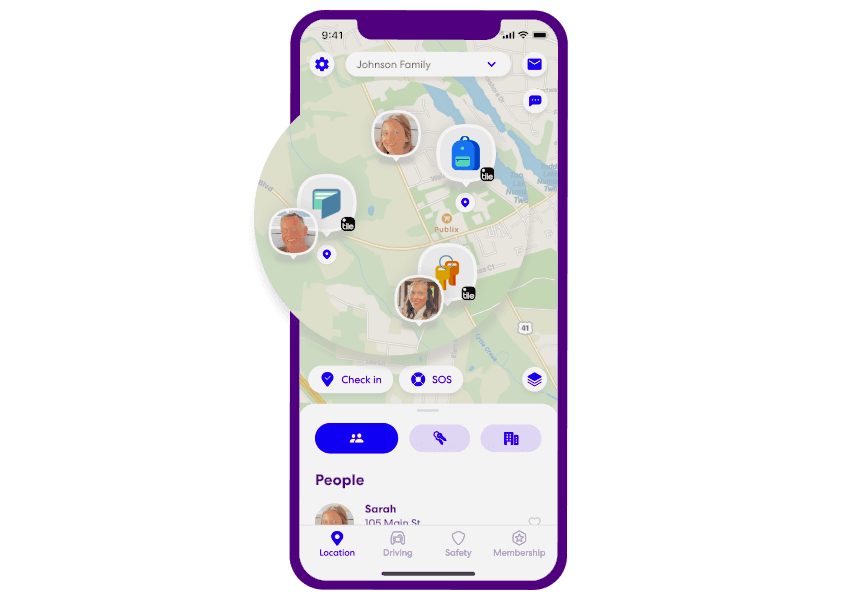
2. Location Features: Stay Closer to Your Kids
SpyZee includes several location‑based tools that help parents ensure their child’s physical safety.
Location Tracker: Real‑Time GPS Tracking
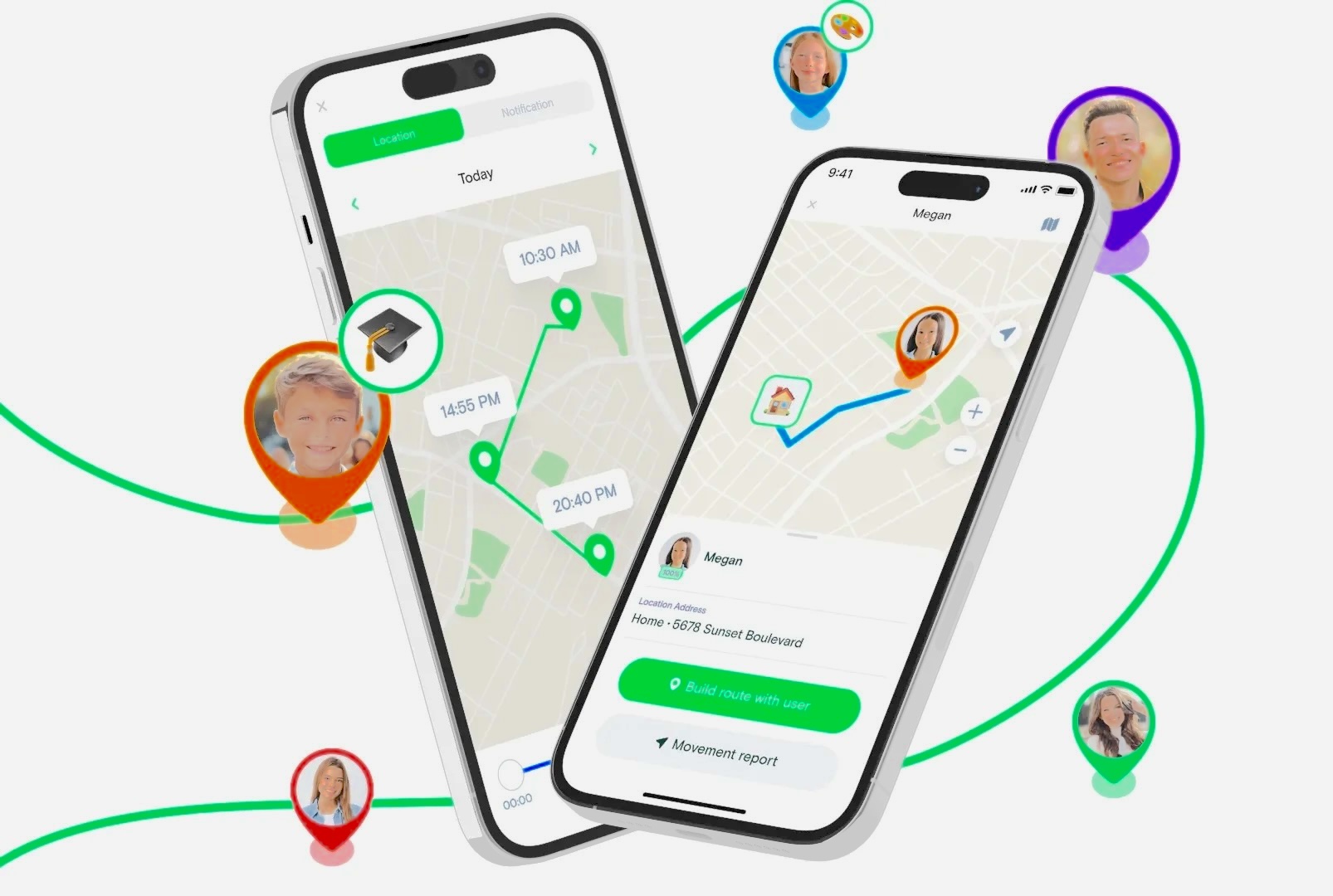
SpyZee’s Location Tracker provides:
- Real‑time location updates
- Accurate GPS tracking
- Fast refresh rates
Parents can quickly confirm where their child is, especially in situations where safety is uncertain.
Location History: View Past Movements
SpyZee stores a timeline of the child’s previous locations.
Parents can:
- Review daily routes
- Check visited places
- Identify unusual travel patterns
This is helpful for understanding routines and ensuring children stay within safe areas.
GeoFence: Create Safe Zones
GeoFence allows parents to set virtual boundaries on a map.
Parents receive alerts when their child:
- Enters a restricted area
- Leaves a safe zone
- Travels unexpectedly
This feature is especially useful for:
- School zones
- Neighborhood boundaries
- After‑school activities
- Travel monitoring
3. Management Features: Build Healthy Digital Habits
Beyond monitoring and location tools, SpyZee includes a suite of device‑management features designed to help families create structure, balance, and safer digital routines.
These tools help parents guide their children toward responsible phone use — not by restricting everything, but by setting thoughtful boundaries.
Screen Time: Create Balance in Your Child’s Digital Life
SpyZee’s Screen Time feature allows parents to:
- View total daily phone usage
- See how much time is spent on apps, videos, and social media
- Set daily screen‑time limits
- Schedule device‑free hours (bedtime, study time, family time)
This helps children develop healthier habits and reduces excessive screen exposure.
App Blocker & App Tracking: Manage What Your Child Can Access
SpyZee gives parents flexible control over app usage.
App Blocker
Allows parents to:
- Block specific apps
- Restrict access during certain hours
- Limit time spent on games or social media
App Tracking
Shows:
- Which apps are used
- How long they’re used
- Usage patterns over time
This helps parents identify apps that may be distracting, unsafe, or age‑inappropriate.
Daily Usage: Understand Your Child’s Digital Behavior
Daily Usage provides a detailed breakdown of:
- App activity
- Screen time
- Device interactions
- Usage trends
Parents can use this information to:
- Identify unhealthy patterns
- Encourage better habits
- Adjust restrictions as needed
SpyZee also flags suspicious activity, helping parents stay aware of potential risks.
Content Filtering: Block Harmful Websites and Content
SpyZee includes customizable content‑filtering tools that allow parents to:
- Block adult content
- Filter violent or graphic websites
- Restrict unsafe search results
- Customize categories based on age and maturity
This creates a safer browsing environment and reduces exposure to harmful material.
Alerts & Syncing: Respond to Risks Immediately
SpyZee’s Alerts system notifies parents when:
- Children access inappropriate content
- Suspicious activity occurs
- Device settings change
- Location boundaries are crossed
- High‑risk apps are opened
These alerts help parents respond quickly and stay informed without constantly checking the app.
Why Do Families Use SpyZee?
SpyZee is designed to support families in three major areas:
1. Protecting Kids From Online and Real‑World Risks
SpyZee’s monitoring tools — Live Monitoring, Remote Camera, One‑Way Audio, Screen Mirroring — help parents understand what their children are doing and whether they’re safe.
These tools can help parents detect:
- Cyberbullying
- Online predators
- Risky conversations
- Exposure to harmful content
- Unsafe environments
2. Ensuring Personal Safety Through Location Tools
SpyZee’s location features help parents stay aware of their child’s whereabouts.
With:
- Real‑time location
- Location history
- GeoFence alerts
…parents can quickly confirm their child’s safety and respond to emergencies.
3. Encouraging Healthy Digital Habits
SpyZee’s management tools help children:
- Reduce screen time
- Avoid addictive apps
- Stay focused during school hours
- Build responsible digital routines
Parents can guide their children without micromanaging every moment.
How to Set Up SpyZee (Step‑by‑Step)
SpyZee is designed to be simple to install and configure.
Step 1 — Install SpyZee on the Parent’s Device
Download SpyZee from the Google Play Store or App Store. Create an account and sign in.
Step 2 — Install SpyZee Kids on the Child’s Device
Follow the setup instructions and grant the required permissions.
Step 3 — Bind the Devices
Enter the pairing code to connect both devices securely.
Once paired, parents can access all monitoring, location, and management features from their dashboard.
What Parents Say (Rewritten Testimonials)
“A helpful tool for staying connected.” — Chloe
As a working parent, I often worry about what my kids are doing online. SpyZee helps me stay aware of their activity and gives me peace of mind when I can’t be with them.
“It makes safety easier to manage.” — Ashley
I used to feel anxious when my child went out with friends. With SpyZee’s location tools, I can check where he is and feel more at ease. It’s become part of our family’s safety routine.
Final Verdict
The best parental‑control app is one that balances safety, privacy, and ease of use. It should help parents protect their children online while still respecting their independence and personal space.
Each app in this guide has strengths:
- SpyZee — Best for Android monitoring and real‑time oversight
- Net Nanny — Best for Apple users
- Kaspersky Safe Kids — Best for online safety
- Qustodio — Best for multi‑platform families
- Bark — Best for monitoring teens
- Screen Time — Best for building healthy habits
- Google Family Link — Best for Google ecosystem
- Microsoft Family Safety — Best for Windows/Xbox households
Your choice depends on your family’s devices, your child’s age, and the level of monitoring you need.
FAQs About Parental Control Apps
1. What is the best parental control app for Android?
SpyZee is one of the strongest options for Android due to its real‑time monitoring, location tracking, and app‑management tools.
2. Which parental control app is best for iPhone?
Net Nanny and Qustodio offer excellent support for iOS devices.
3. Can parental‑control apps track location?
Yes. Most apps include real‑time GPS tracking, geofencing, and location history.
4. Do parental‑control apps work on multiple devices?
Apps like Qustodio, Kaspersky Safe Kids, and Microsoft Family Safety support multiple platforms.
5. Can teens bypass parental‑control apps?
Some apps can be bypassed using VPNs or device tricks. Apps like SpyZee and Net Nanny offer stronger protections.
6. Are parental‑control apps safe?
Yes — as long as you choose apps with strong privacy policies and encrypted data handling.
7. Do these apps monitor social media?
Some apps (like Bark and SpyZee’s keyword alerts) offer limited social‑media monitoring.
8. Are parental‑control apps free?
Some apps offer free versions (Google Family Link, Screen Time basic), while others require subscriptions for full features.